Figma is now an important tool for designers because it lets them work together and is flexible enough to make everything from wireframes to high-fidelity prototypes. The main software is strong on its own, but plugins really bring out its full potential. These add-ons make workflows easier, automate tasks that need to be done over and over, and give you new tools so you can focus on what really matters: making great designs.
But there are thousands of plugins to choose from, so it can be hard to find the right ones. We’ve put together a list of the 20 best Figma plugins that can make your design process better. These tools will help you work smarter, faster, and more creatively, no matter how experienced you are.
Table of Contents
What are Figma Plugins?
Figma plugins are third-party extensions made by the Figma community that add new tools, automation, and customization options to the platform’s main features. They have features that Figma doesn’t have, like making wireframes, making gradients, turning text into speech, or working with other services. People can install and use these plugins directly in the Figma interface from the Figma Community to make their work easier, boost their productivity, and improve their design experience.
Top Figma Plugins to Supercharge Your Workflow
Here are our top picks for the best Figma plugins that every designer should know about.
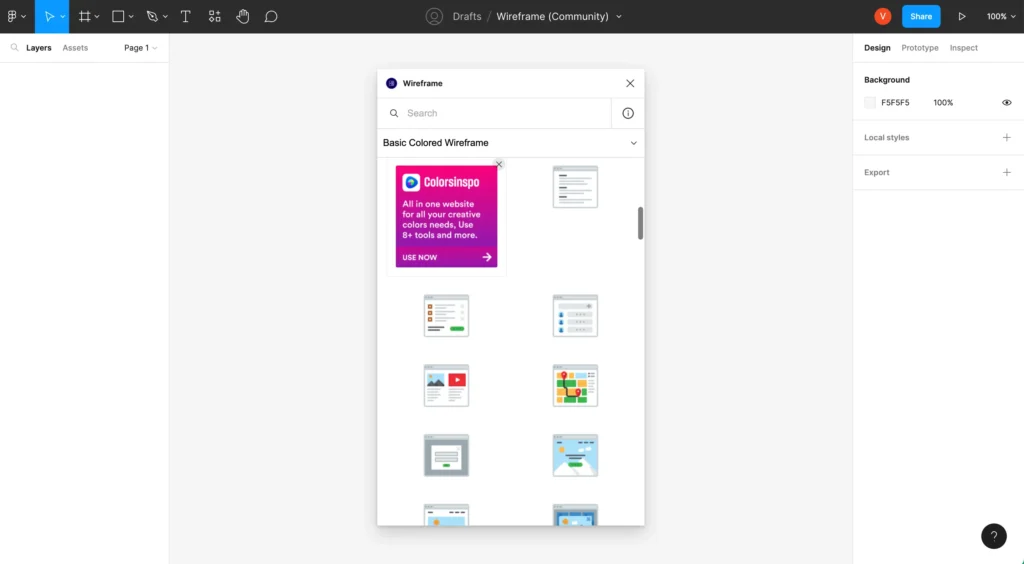
1. Wireframe
Best for: Creating wireframes quickly.
You need a strong base before you start working on the details of visual design. The Wireframe plugin makes this first step easier by giving you a library of ready-made wireframe templates for both web and mobile. You can quickly plan out how users will move through your site and how pages will be set up without getting too caught up in the details. It’s a great way to come up with ideas and start designing.
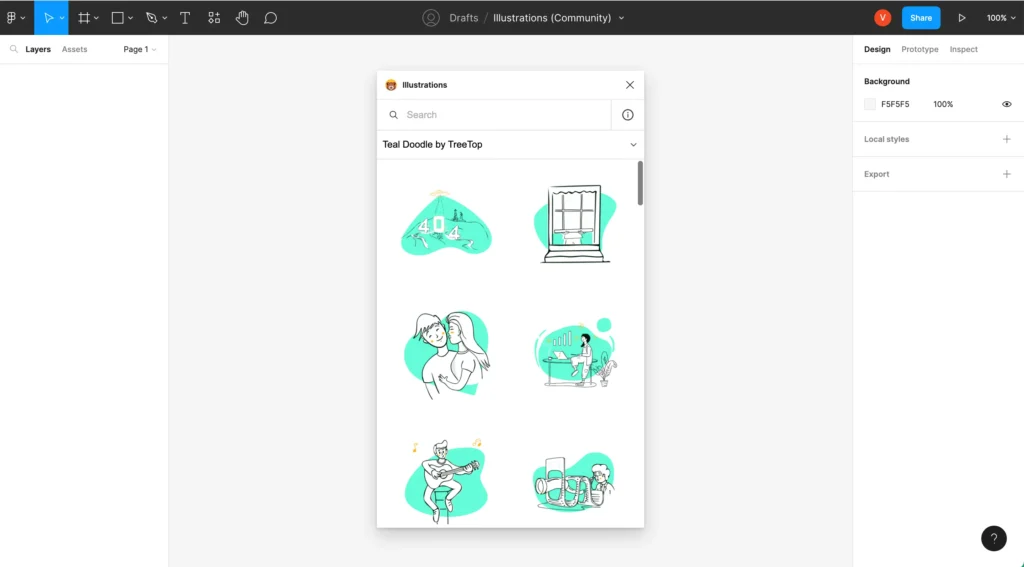
2. Illustrations
Best for: Free illustrations.
High-quality illustrations can make your designs better, but making them from scratch takes a lot of time. The Illustrations plugin lets you use a huge library of free, customizable illustrations right in Figma. You can add visual interest to your projects with just a few clicks, which makes it great for websites, apps, and presentations.
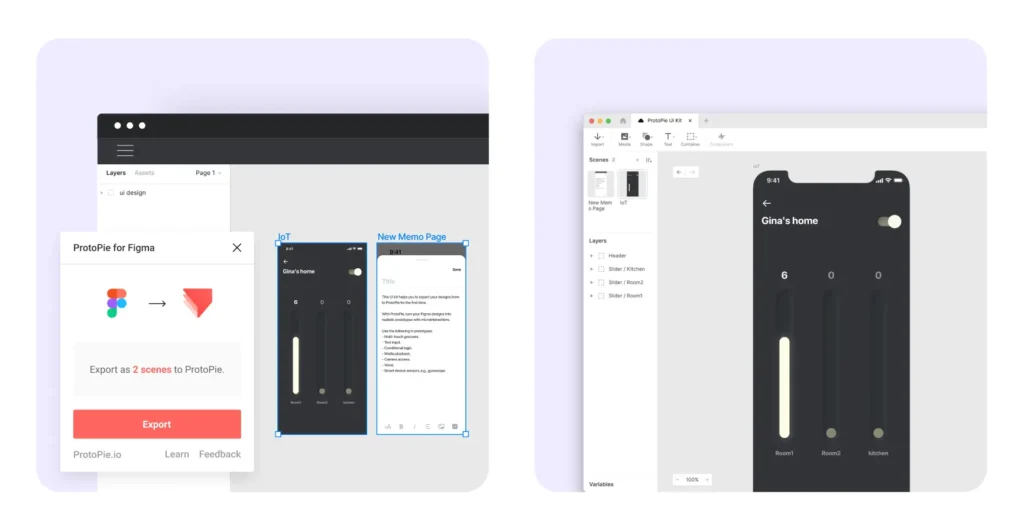
3. ProtoPie
Best for: Turning designs into high-fidelity prototypes.
Static designs can only say so much. With ProtoPie, you can make prototypes that look and feel like the real thing from your Figma designs. This makes user testing more realistic and helps stakeholders better understand what the user experience should be like.
4. PitchDeck Presentation Studio
Best for: Creating pitch decks.
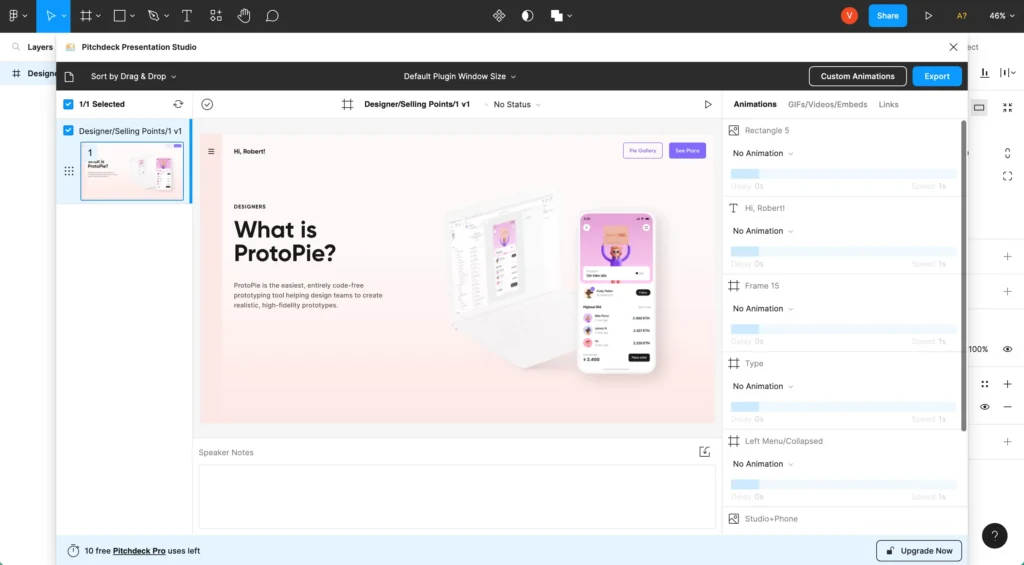
If you’ve ever had to make a Figma plugin for a branding deck or presentation, you know how hard it can be to export your designs. PitchDeck Presentation Studio fixes this by letting you make and show off interesting slide decks right in Figma. It makes the process easier, so your presentations are just as good as your designs.
5. Autoflow
Best for: Establishing simple user flows.
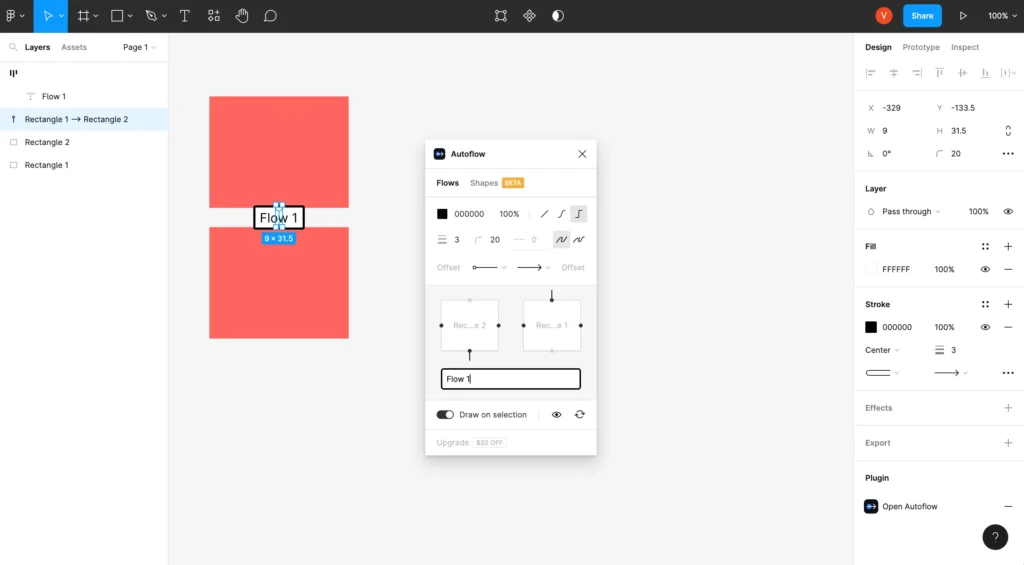
It’s very important for good UX to be able to see how a user moves through an app. Autoflow makes this easy by letting you draw connections between frames to illustrate user journeys. It’s an easy way to plan out interactions and make flow diagrams that everyone on your team can understand.
6. Remove BG
Best for: Removing image backgrounds.
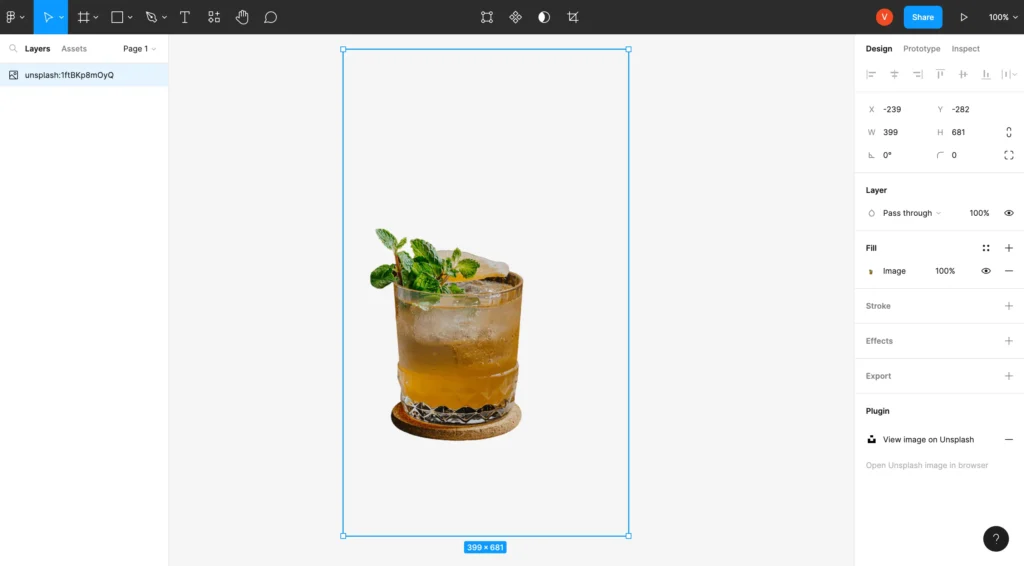
Do you need to make an image see-through in Figma? With just one click, the Remove BG plugin uses AI to get rid of the background from any photo. This saves you the trouble of switching to another program, like Photoshop, and lets you do everything you need to do in Figma.
7. UIHUT
Best for: Finding design resources.
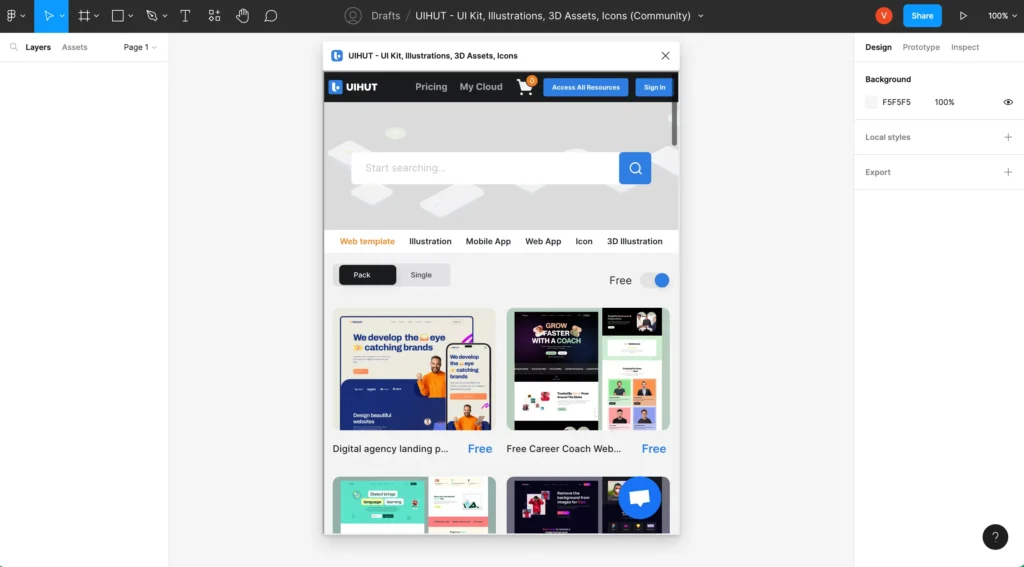
UIHUT is a one-stop shop for design resources, giving you access to thousands of pre-made design elements like UI kits, templates, and icons. It speeds up your design process by giving you a lot of resources to use, so you don’t have to start every project from scratch.
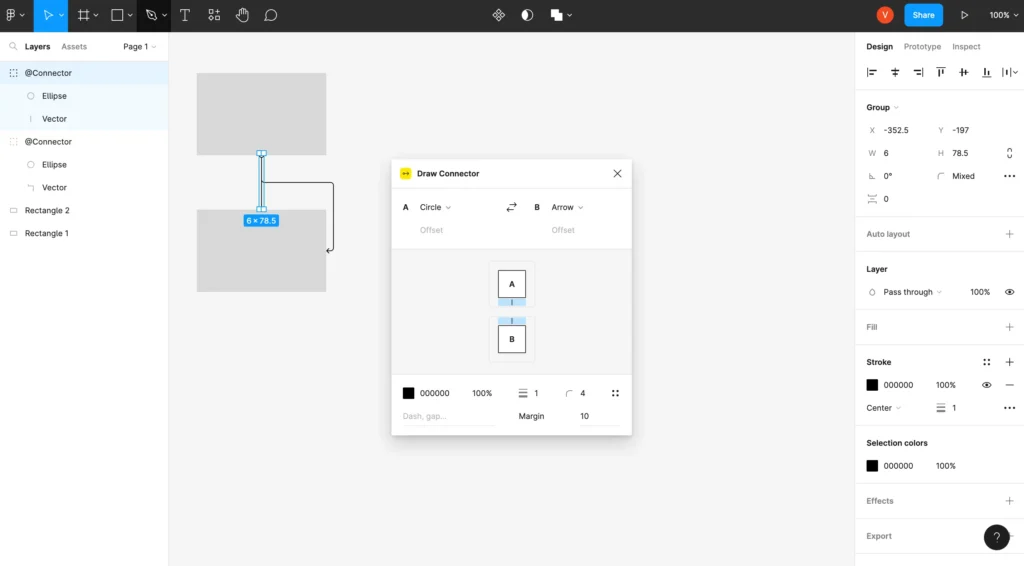
8. Draw Connector
Best for: Connecting layers.
It can be hard to keep track of complicated designs. Draw Connector makes this easier by letting you make smart, editable connections between layers. It’s great for making flowcharts, diagrams, or just putting your design elements in a more organized way.
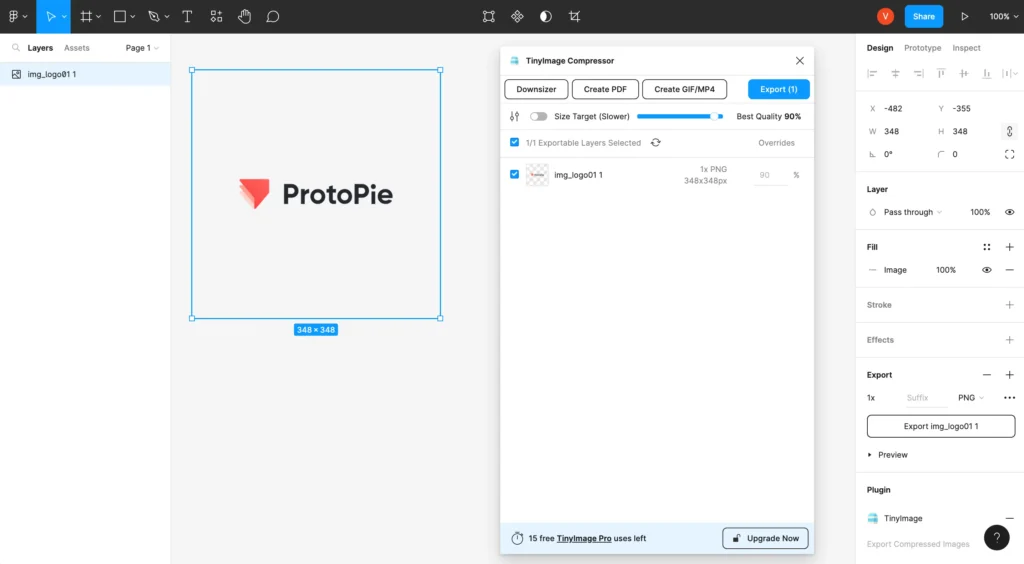
9. TinyImage Compressor
Best for: Exporting compressed image files.
Your website or app may run slowly if you have large image files. TinyImage Compressor fixes this by letting you export JPG, PNG, and other compressed image formats straight from Figma. It makes files much smaller without losing any quality, which is important for web performance.
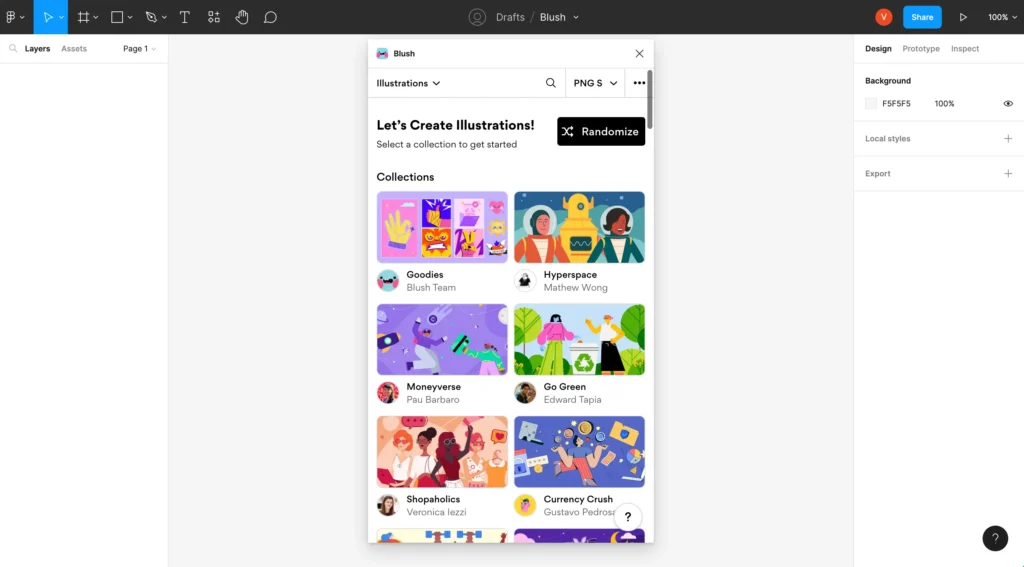
10. Blush
Best for: Creating and customizing illustrations.
With Blush, you can make and change one-of-a-kind illustrations using a library of pre-made parts. You can put together different parts to make characters and scenes that look like they belong to your brand. Adding personality to your designs in this way is both fun and effective.
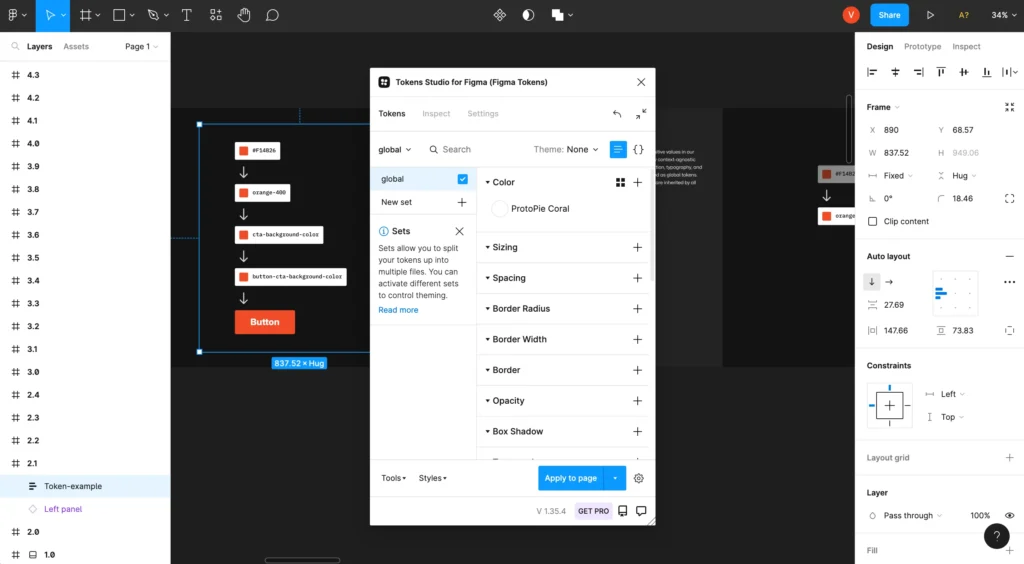
11. Tokens Studio
Best for: Handling complex design systems.
Managing design tokens, such as colors, fonts, and spacing, is very important for teams that work with design systems. Tokens Studio is a powerful tool for making, managing, and syncing design tokens across all of your projects. This makes sure that everything is consistent and can grow.
12. ColorWell
Best for: Mixing colors in your designs.
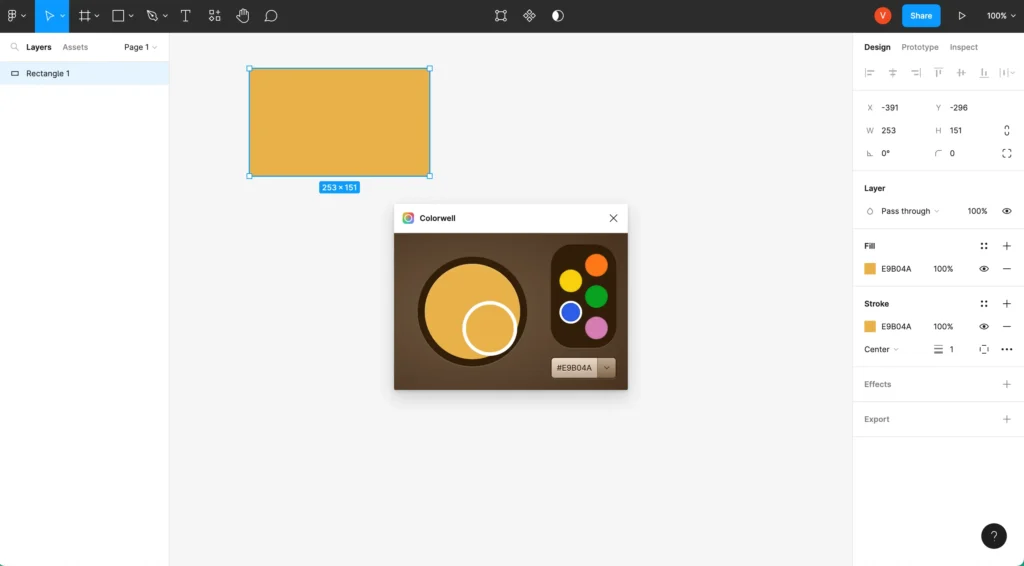
ColorWell is a more advanced color tool than Figma’s built-in color picker. It makes it easy to mix colors, make gradients, and make color palettes. It’s a great tool for designers who want to have more say over the colors they use.
13. Mockuuups Studio
Best for: Viewing designs in device mockups.
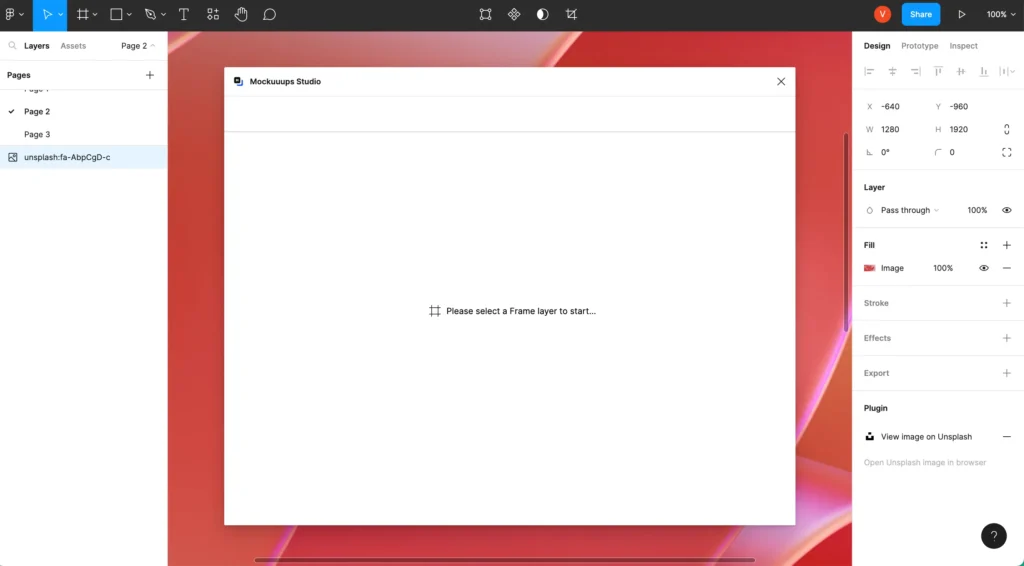
Putting your designs in a real-world setting can make a big difference. Mockuuups Studio has more than 1,000 high-quality device mockups in its library. You can quickly put your designs on phones, laptops, and tablets to make presentations that look real and professional.
14. LottieFiles
Best for: Adding animations.
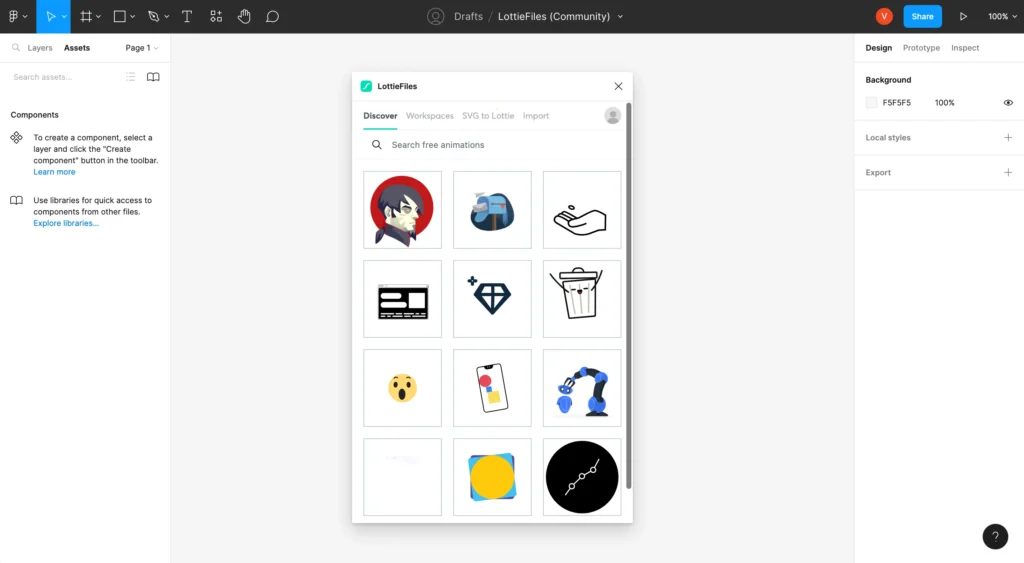
Your designs can come to life with animations. You can use LottieFiles to add lightweight, scalable Lottie animations directly to your Figma projects. You can get thousands of free animations or bring in your own, which makes your prototypes more interesting and interactive.
15. Lorem Ipsum
Best for: Adding sample text.
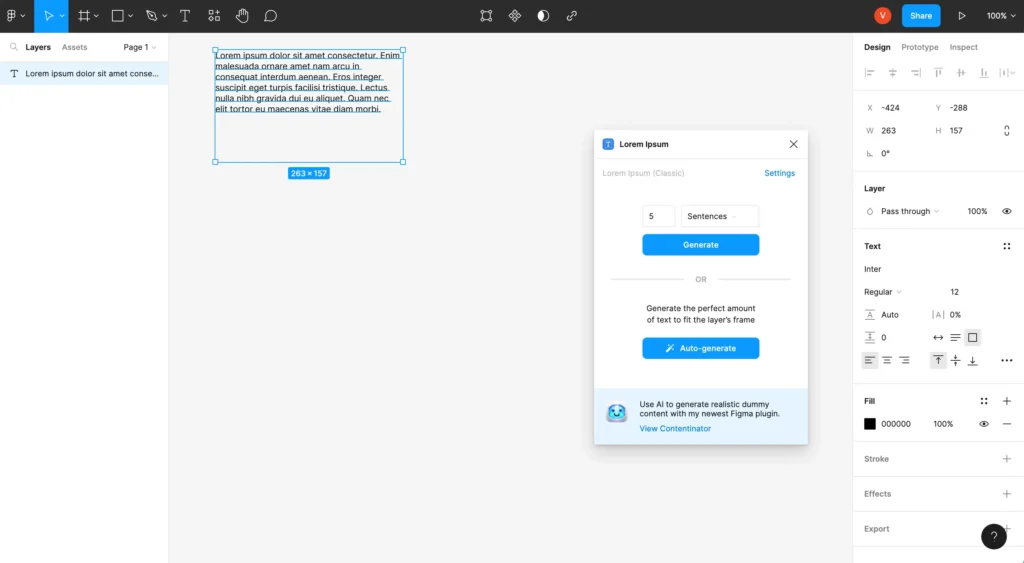
Every designer knows how important it is to have placeholder text. The Lorem Ipsum plugin makes “dummy” text that you can use to fill in your layouts. This lets you focus on the visual design without being distracted by the final copy. It’s a simple but very useful tool.
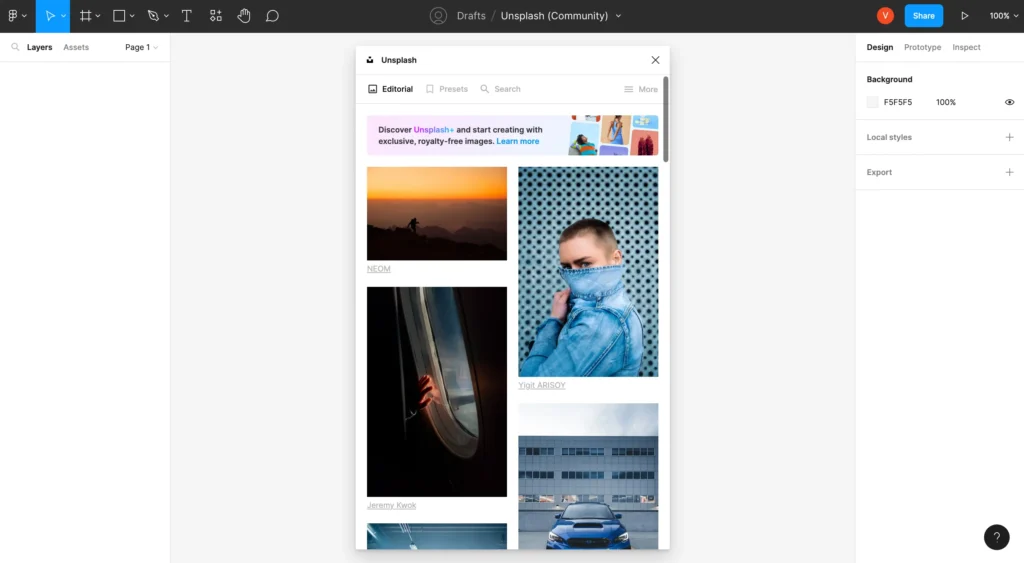
16. Unsplash
Best for: Adding images.
With the Unsplash plugin, you can quickly access a huge collection of stunning, high-resolution, royalty-free photos. You can find pictures and add them right to your designs, which saves you the trouble of looking for them on other websites.
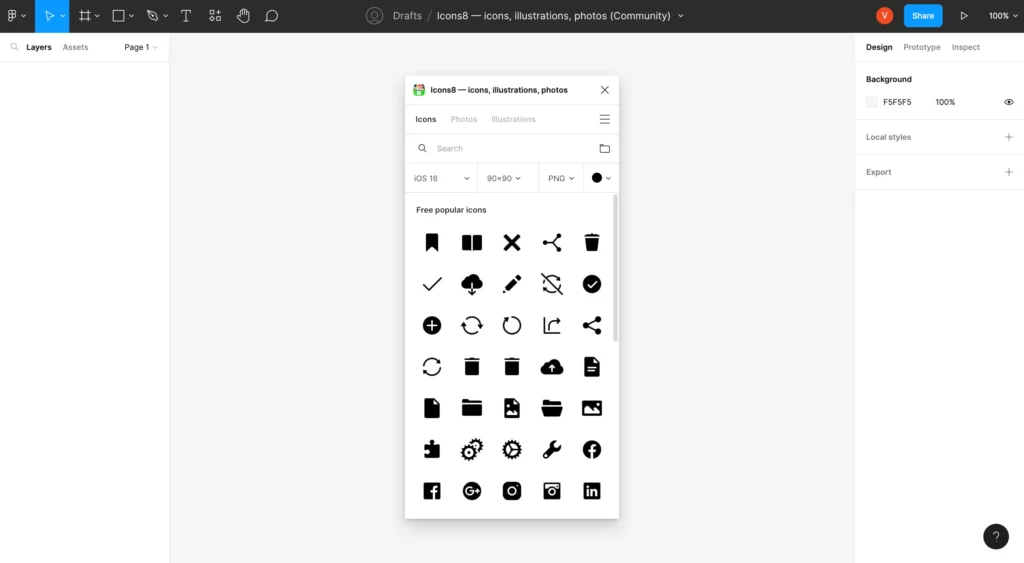
17. Icons8
Best for: Adding graphics.
Icons8 has a huge library of icons, illustrations, and photos that are all high-quality and consistent. It’s easy to find and add graphics that fit your style, which helps you keep your projects looking the same.
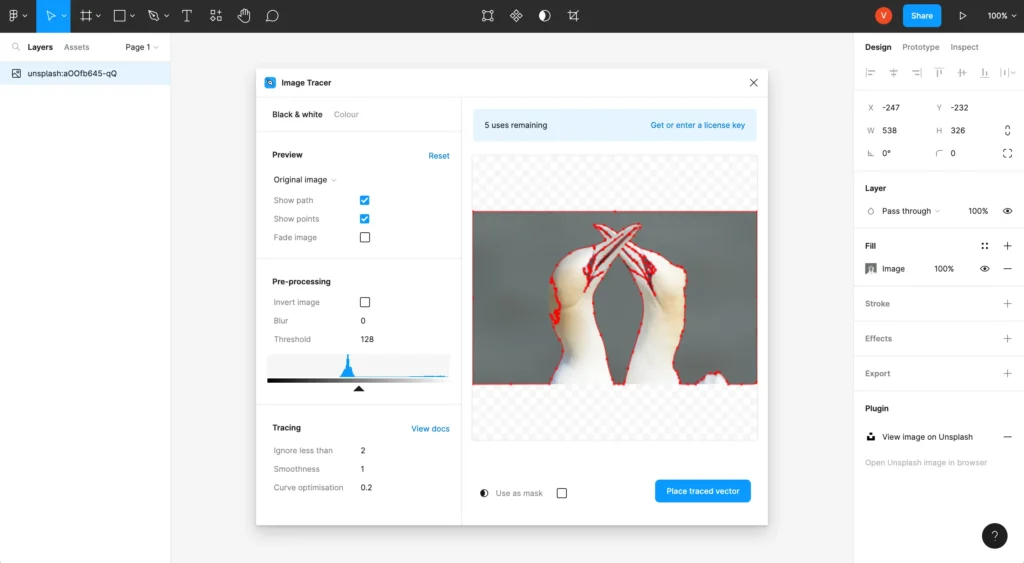
18. Image Tracer
Best for: Converting images into vector layers.
You might have to turn a raster image, like a PNG or JPG, into a scalable vector. The Image Tracer plugin makes bitmap images into editable vector layers with just one click.
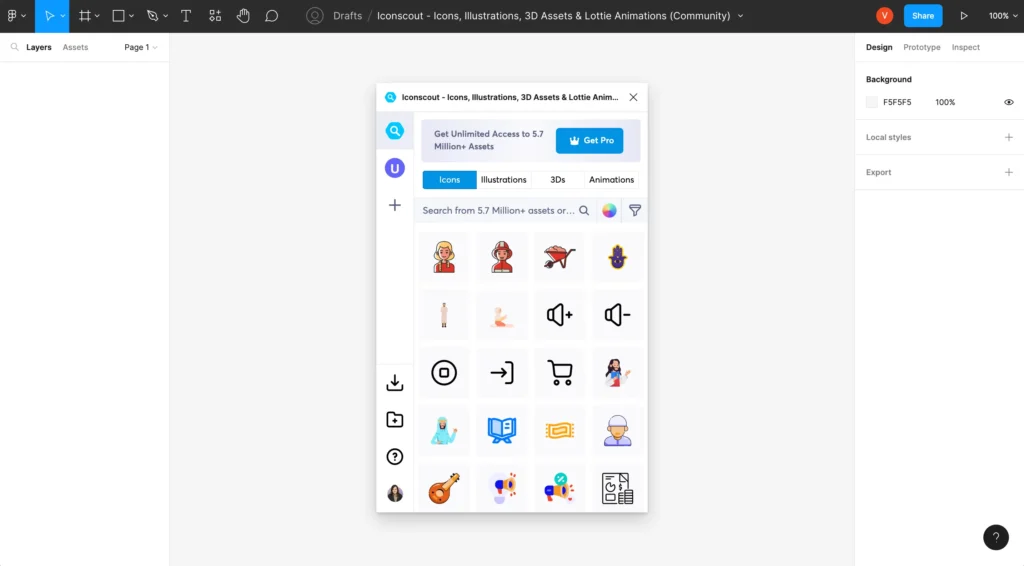
19. Iconscout
Best for: Accessing a wide range of design assets.
Iconscout has a huge collection of design assets, such as icons, illustrations, and 3D graphics. It has a strong search and filter that makes it easy to find exactly what you need to improve your designs.
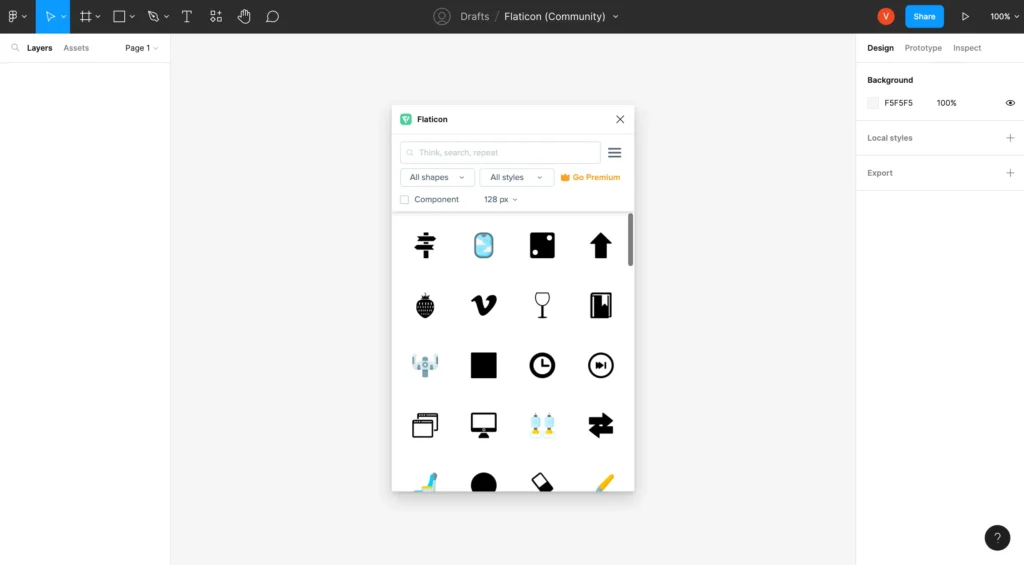
20. Flaticon
Best for: Adding icons.
Flaticon is a must-have for designers who need a reliable place to get icons. It gives you access to millions of vector icons in different formats. The plugin makes it easier to work by letting you search for and add icons directly to your Figma canvas.
Take Your Designs to the Next Level
Plugins make a big difference for any designer who uses Figma. They help you work faster and get better results by automating tasks, opening up new creative possibilities, and making it easier to work together. The 20 plugins on this list are a great place to start, but the Figma community is always making new ones that you can try out.
Try out different tools until you find the ones that work best for you and your team. Adding the right plugins to your workflow can save you hours of work and help you make your biggest creative dreams come true.
For any inquiries, feel free to contact us! Contact Us
” Figma plugins Figma plugins Figma plugins Figma plugins Figma plugins Figma plugins Figma plugins Figma plugins Figma plugins Figma plugins Figma plugins Figma plugins Figma plugins “